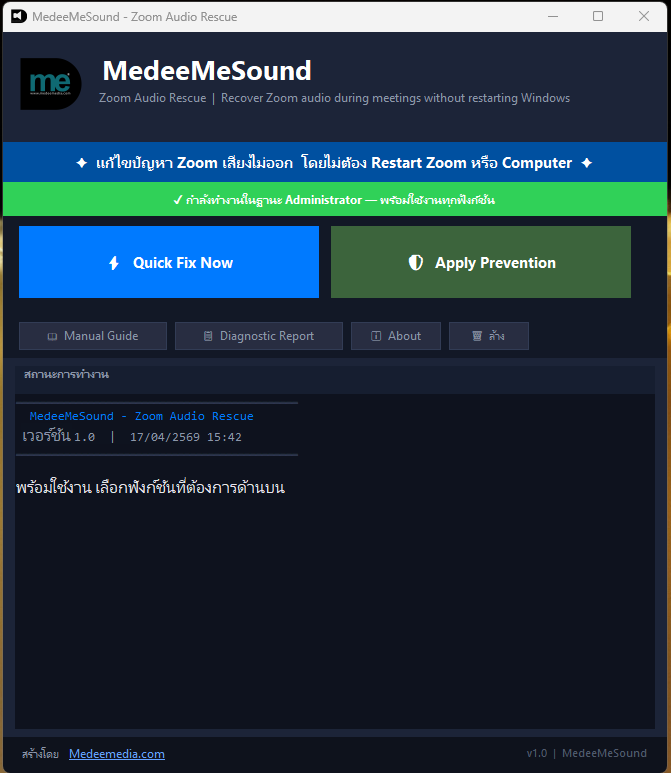
MedeeMeSound is a free tool from medeemedia for fixing Zoom audio problems without leaving the meeting or restarting the whole computer.
If you work from home or join online meetings often, you may have seen this problem:
Zoom suddenly has no sound even though YouTube or other apps still play normally. Restarting Zoom may kick you out of the meeting, and rebooting the PC is not practical during a live call.
MedeeMeSound was built for this exact situation.
How it works
In many cases, Zoom audio does not fail because Zoom itself is broken. The problem often comes from a stuck Windows Audio Session, especially on machines that use Realtek audio drivers, which are common in office environments.
MedeeMeSound fixes the issue by restarting the Windows audio services AudioEndpointBuilder and Audiosrv. The process usually takes only 3-5 seconds, and Zoom can detect the audio again without leaving the meeting.
Main features
Quick Fix Now
Restart audio services immediately. Sound usually returns within a few seconds, which is useful during a real meeting.
Apply Prevention
Applies preventive settings for Windows Communications Ducking, a Windows feature that may reduce Zoom volume unexpectedly. This is useful before important meetings.
Manual Guide
Includes a clear explanation of the cause, manual recovery steps, and recommended settings for Realtek-based Windows environments.
Diagnostic Report
Creates a simple report on the Desktop for IT support to review later. It does not collect private meeting content.
Why this tool is useful
- Portable 100% - no installer and no separate .NET setup needed. Download and run.
- Auto-elevate admin permission - requests the needed Windows permission automatically.
- Simple interface - designed for users who just need the meeting audio fixed quickly.
- Safe behavior - it does not close Zoom, reboot Windows, or randomly change your default audio device.
- Action log - records actions under
%LocalAppData%\MedeeMeSound\logs\for later checking.
Who it is for
- Work-from-home users who join Zoom meetings every day.
- IT teams handling helpdesk tickets about Zoom audio problems.
- Organizations using Windows 10/11 with Realtek audio drivers.
- Anyone who wants a faster option than unplugging devices or rebooting the PC.