If you use Windows 11 on an older or low-spec computer, the system may feel delayed because visual effects and animations consume extra resources. This guide shows a simple way to make Windows 11 feel faster by turning off effects that are not necessary.
Turn off visual effects and animations
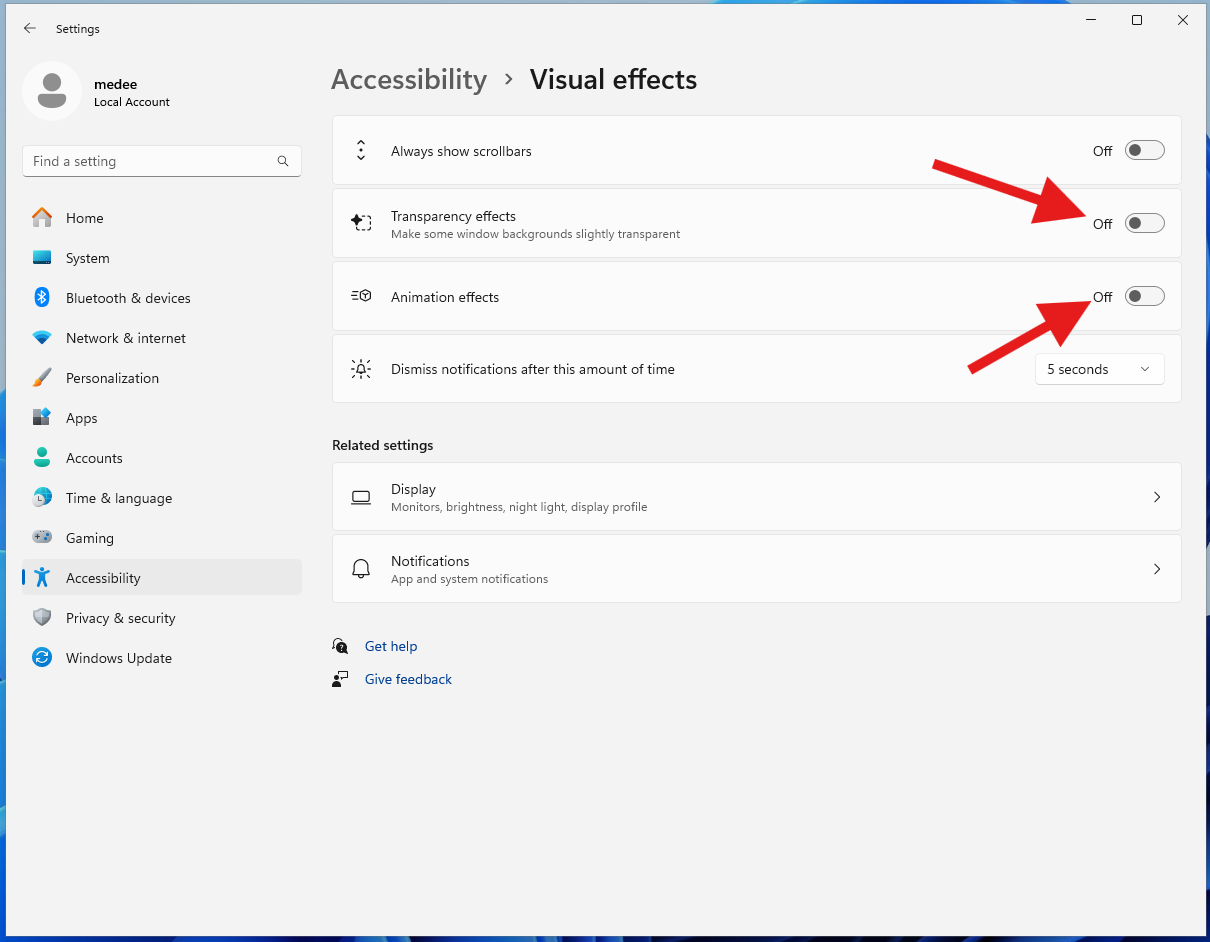
Transparency effects and animation effects are two common visual features that can make low-spec PCs work harder. You can disable them with these steps:
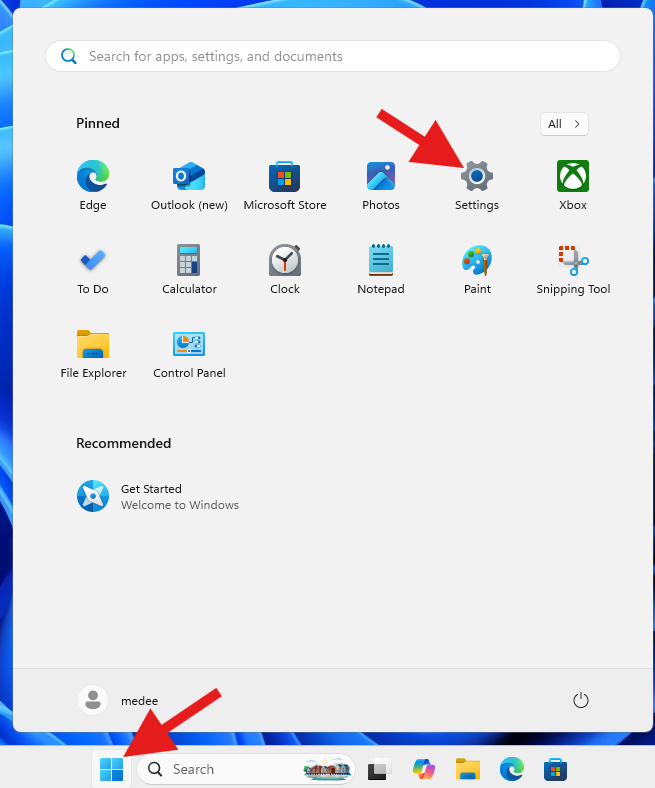
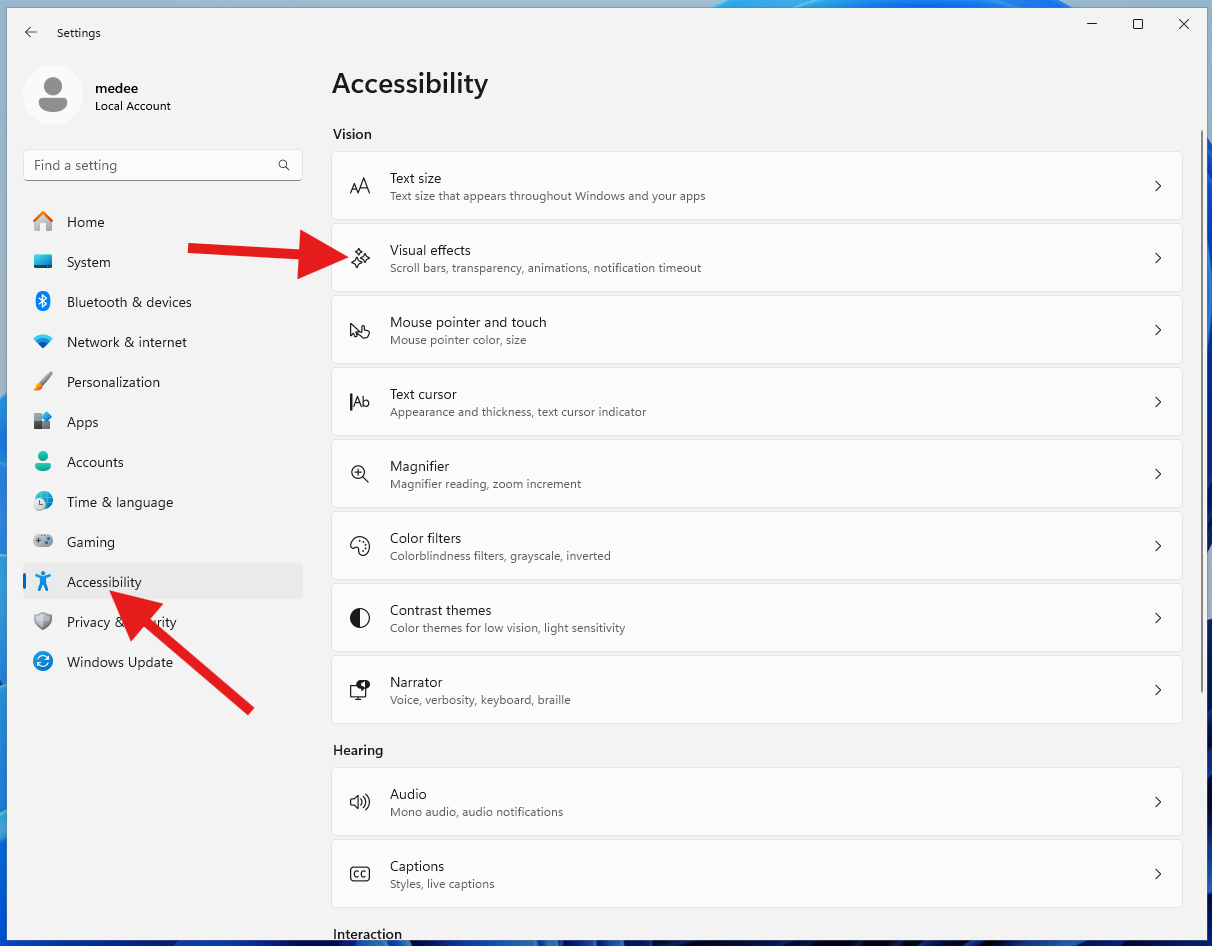
Click the Start menu, then open Settings > Accessibility > Visual Effects.
Turn off Transparency effects and Animation effects.
After this change, opening windows, switching apps, and using the interface should feel cleaner and less sluggish. It will not turn old hardware into a new computer, but it removes visual work that many office machines do not need.