Windows 11 includes modern features that make the interface feel more dynamic and keep information updated. One of those features is Search Highlights, which can show news, trending searches, holidays, and other suggested content inside Windows Search.
For some users, especially on low-spec machines, this extra content can feel unnecessary. Turning off Show Search Highlights is a simple way to make the search experience cleaner and potentially improve responsiveness.
1. Understand Search Highlights
Search Highlights is the section of Windows Search that displays suggested or online content. It can be useful in some situations, but if you mostly search for local apps, files, or settings, it may be more distracting than helpful.
2. Open Search settings
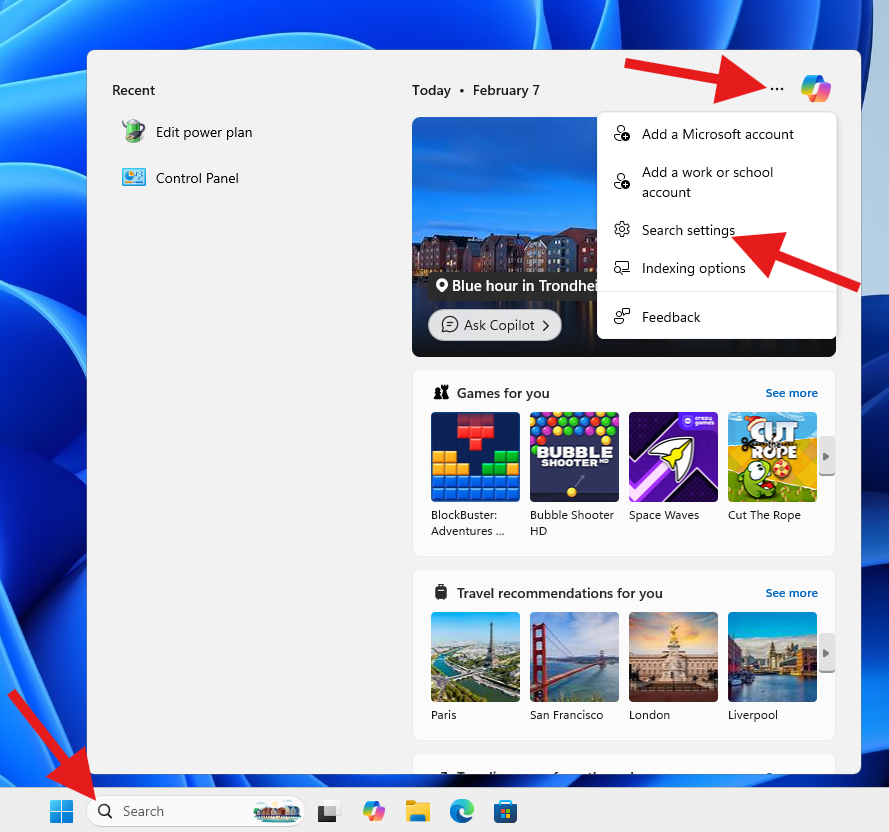
Click the search icon on the Taskbar. When the search window opens, click the ... menu in the top-right corner, then choose Search settings.
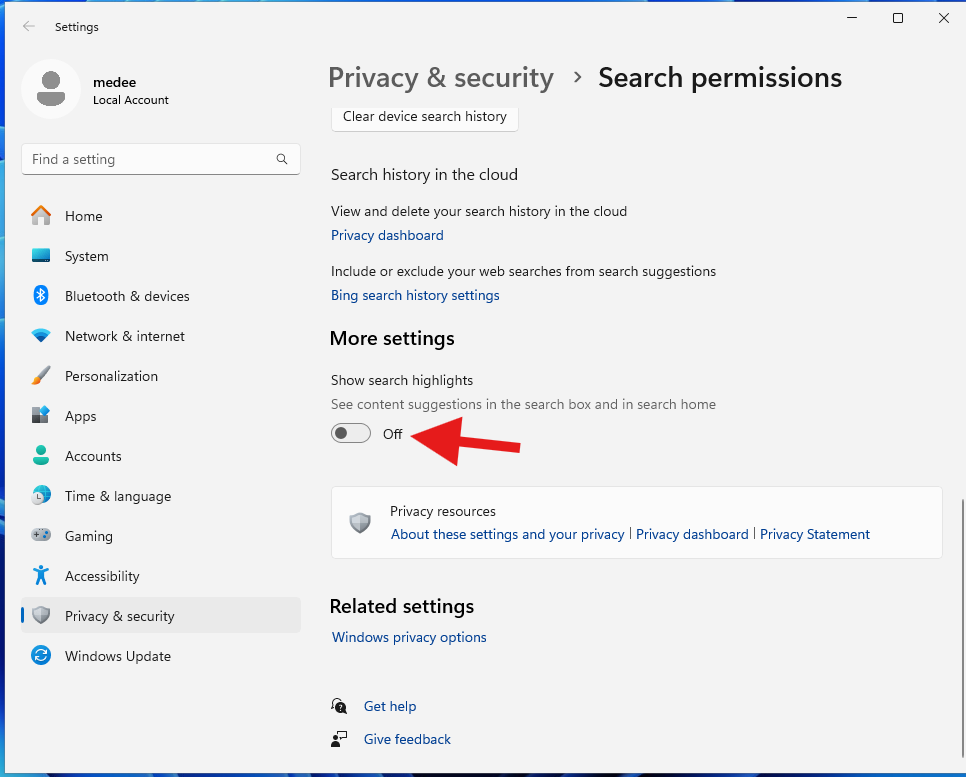
The settings page will open under Privacy & security > Search permissions.
3. Turn off Search Highlights
Scroll down to the additional settings section and switch off Show Search Highlights. After turning it off, the search panel will stop showing Search Highlights content.
4. Benefits of turning it off
- Faster search experience: less extra content is loaded in the search panel.
- Lower background load: useful for computers with limited CPU or memory.
- Cleaner interface: fewer distractions when you only want to find files, apps, or settings.
5. Summary
Disabling Show Search Highlights is a quick Windows 11 adjustment that can make the search experience cleaner. It is especially helpful for older PCs, low-spec office machines, and users who prefer a simple local search panel.