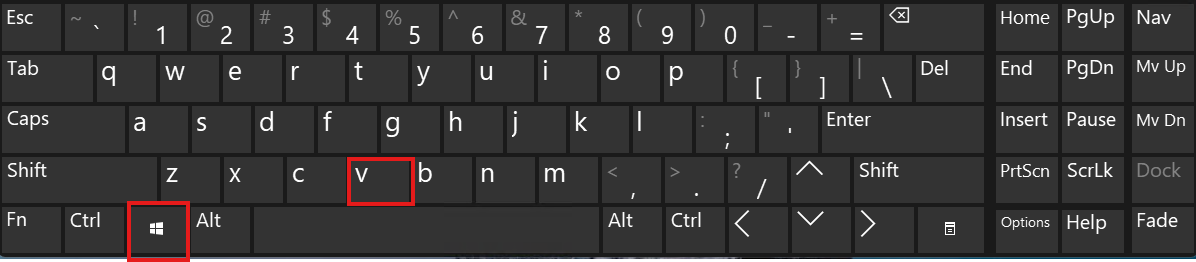
One useful Windows feature that is often overlooked is Win + V, also known as Clipboard History. It is extremely helpful in real work, but many users never turn it on.
What is Win + V?
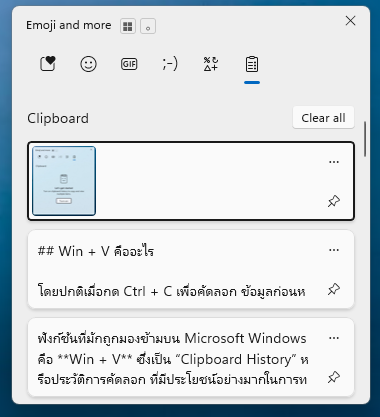
Normally, when you press Ctrl + C, the previous copied item is replaced immediately. With Win + V, Windows keeps a history of copied items so you can choose an earlier item and paste it again.
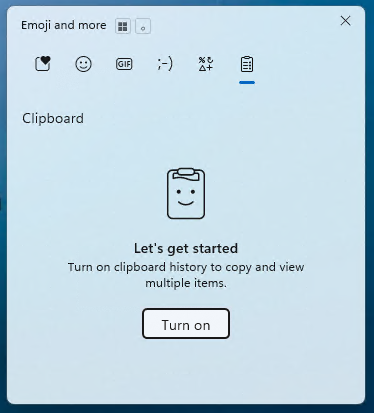
How to enable it
- Press Win + V.
- Click Turn on.
After that, every time you press Win + V, the Clipboard History panel will appear.
Main capabilities
1. Keep multiple copied items
- Stores copied text, links, and small images.
- Reduces the need to go back and copy the same item again.
2. Pin important snippets
- You can pin frequently used text such as email addresses, phone numbers, and work templates.
- Pinned items stay available even after restarting the computer.
3. Sync across devices
- If you sign in with the same Microsoft account, Clipboard History can sync between Windows devices.
Real-world uses
IT and documentation work
- Copy several commands, IP addresses, or configuration snippets.
- Switch between pasted items without going back to the original window.
Sales and chat support
- Keep repeated customer replies.
- Save typing time during busy conversations.
Content and AI prompt work
- Keep several prompt versions.
- Test and switch between them quickly.
Useful details many people miss
- It supports emoji and symbols from the same clipboard interface.
- It can replace a lightweight clipboard manager for many users.
- It is fast because it is built into Windows.
Limitations
- It keeps a limited number of recent items.
- Large files and some data types are not stored.
- Unpinned items may disappear when the clipboard is cleared or after certain restarts.
Summary
Win + V is a small feature that can noticeably improve productivity, especially for anyone who copies and pastes many times a day. If you have never enabled it, it is one of the most useful built-in Windows tools to try.